Use a studio model
Choose a fictional studio look to explore the jewelry before using your own photo. Model filters change the models, not which pieces you can try.
Return to your original booth tab to keep an unsaved fitting, or use the selected-piece return link below.
YOUR STUDIO GUIDE
This standalone guide does not store an unsaved fitting. If your booth is open in another tab, return to that tab to keep it.
START HERE · THREE SIMPLE STEPS
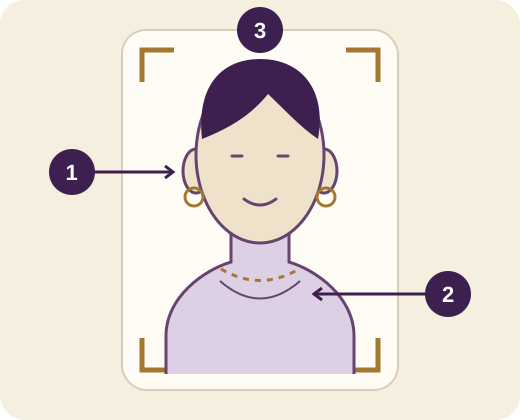
Choose a fictional studio look to explore the jewelry before using your own photo. Model filters change the models, not which pieces you can try.
Use Take my photo for the camera choices your browser offers, or Choose a photo for an existing picture. Stay in this studio on your phone, tablet or computer. No QR or second device needed.
Choose jewelry, adjust its placement, and download your private preview on any screen. Membership adds optional private saves and public previews.
Only use this when your photo is on a different device from the booth where you want to fit jewelry.
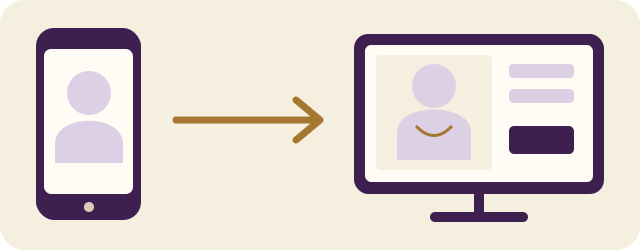
No refresh needed. The receiving booth loads the photo automatically. Refreshing after completion clears its unsaved photo; send a new photo if needed.
If you changed the receiving photo while waiting, choose Use received photo to replace it.
Use the same studio on a phone, tablet or computer: choose a studio model, Use camera, or Choose a photo from this device. Camera choices depend on your browser and available camera; choose an existing photo if capture is unavailable. No second device, QR code or account is needed to try jewelry. Model filters change only the model choices, not the jewelry offered. Choosing a photo does not save it. JPEG, PNG and WebP are supported; export HEIC as JPEG first. Your whole photo fits the preview; use Preview size only to enlarge it. If you deliberately want to send a photo from a second device, expand Optional: receive a photo from another device below the photo controls. Create the private connection in the receiving booth, open its link on the sending device, choose a photo, consent, then Send photo to my open booth. No refresh is needed: the receiving booth loads it automatically. A pending transfer can reconnect after refresh within its expiry, but refreshing after completion clears the unsaved photo because the temporary copy has been removed. If its photo changed while waiting, choose Use received photo. The separate item link/QR opens a fresh fitting on another device without moving your current photo.
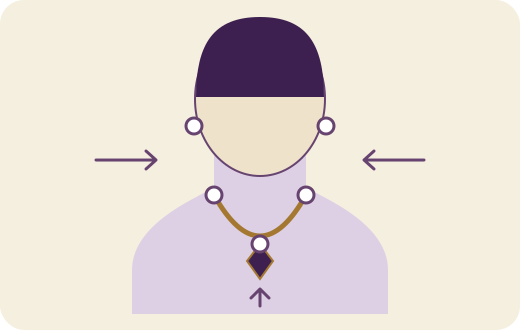
Tap or click a jewelry thumbnail to replace the fitting. Add to photo and Try with this layer companion pieces. Open Fine-tune jewelry & chain for size, rotation and position. On a touch screen, enable Move jewelry while adjusting and turn it off to scroll. Set my fit points marks your neck endpoints, pendant rest and ear hooks. Use current jewelry placement as my defaults captures your adjustments; signed-in members can save these to a look. The chain is simulated and scale is an estimate, not a measurement or guarantee.
Choosing a photo alone does not save a member look or publish it.
Sign in, name your look, agree to the private-save consent, then save.
Trying jewelry needs no account. Join by email and verify the membership link to save different hairstyles or portraits. Name your look, check the private-save consent, then Save private headshot. Up to eight looks can be stored per account. Save name & fit points updates a selected saved look. Deleting a look removes its hosted headshot and revokes previews linked to it; backups follow hosting retention. Saved headshots are encrypted outside the public Media Library.
Download private preview saves a fitting to your device. Publishing is a separate choice: sign in, check the public-preview consent and Create my share preview. Anyone with that link can view the composite for seven days. My published previews lets you revoke it. The original private headshot stays private; downloads and social caches may remain. Facebook, WhatsApp and available native apps can share the invitation; use Copy link for Messenger if needed. Preview appearance depends on the social service.
Invitation links and item QR codes include a referral code when available. A new email-verified membership arriving through the invitation is recorded once for review. Your invitations shows your link and count. Eligible rewards follow the configured promotion and referral rules; joining or clicking alone does not earn a reward. Keep the invitation link intact when passing it on. Separately approved Modeling Designs By J participants can use their co-branded portfolio links for qualifying-sale commission. Visit Modeling Designs By J in site navigation for the program, terms and private studio. Clicks and membership invitations alone do not earn commission.